Home
> FAQs
> Programari i Aplicacions
> Sincronització de OneDrive
Sincronització de OneDrive
Per poder configurar la sincronització de OneDrive i el seu bon funcionament és molt important tenir instal·lat Windows 10 i tenir al dia les seves actualitzacions.
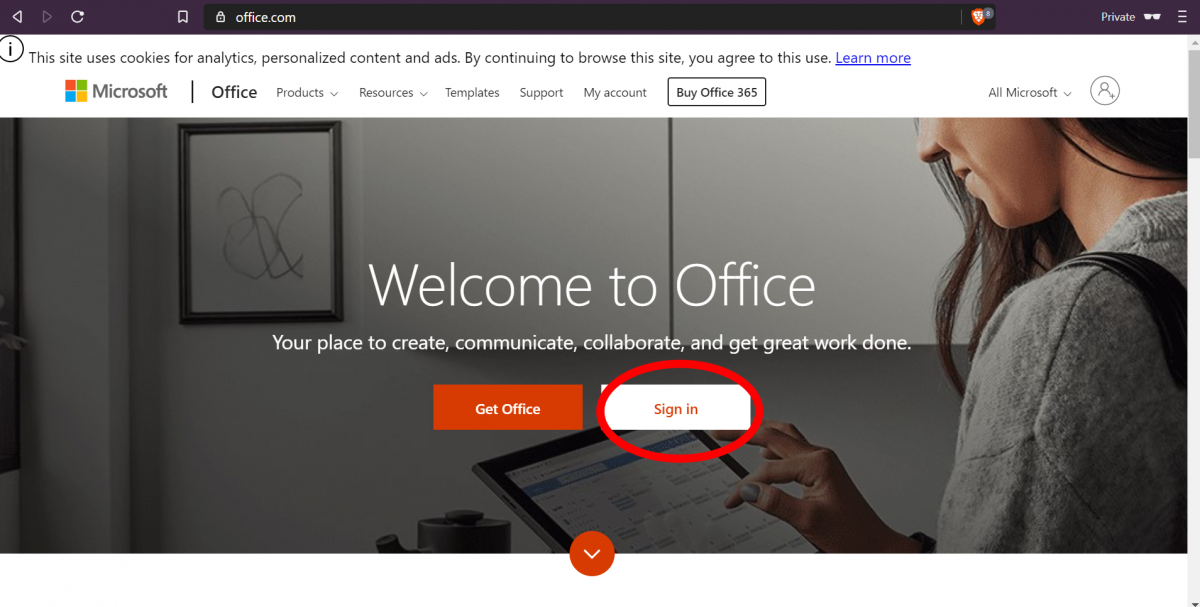
- Primer de tot farem servir un navegador web per accedir a Office.com. Un cop a la pàgina accedirem a l'enllaç Inicia sessió (Sing In).
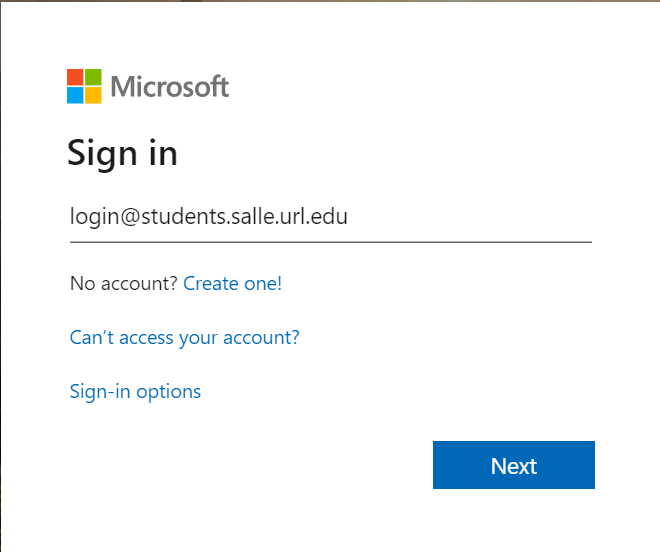
- S'obrirà una finestra que ens demanarà l'usuari. Haurem d'introduir el nostre usuari de correu incloent el domini i prémer a el botó Següent (Next).
Alumnes : <login>@students.salle.url.edu
PDI / PAS : <login>@salle.url.edu
Alumnos

PDI / PAS
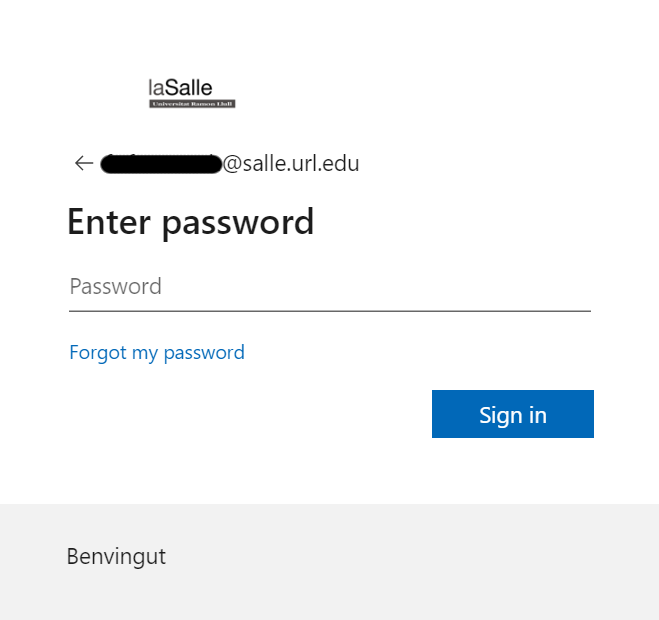
- A continuació ens demanarà la contrasenya. La introduirem i apretarem el botó Inicia sessió (Sing In).
- Apareix la pàgina inicial de Office.com. Entre les apliacaciones veurem que hi està OneDrive. La seleccionem.

- Aquest enllaç ens portarà a les pàgina principal de onedrive. Des d'aquesta pàgina seleccionarem l'opció de Sincronitzar (Sync) de menú superior.

- Al clicar sobre aquest enllaç, s'obrirà una finestra demanant-nos obrir l'aplicació de OneDrive local de l'ordinador. Seleccionarem Obrir Microsoft OneDrive (Open Miscrosoft OneDrive).

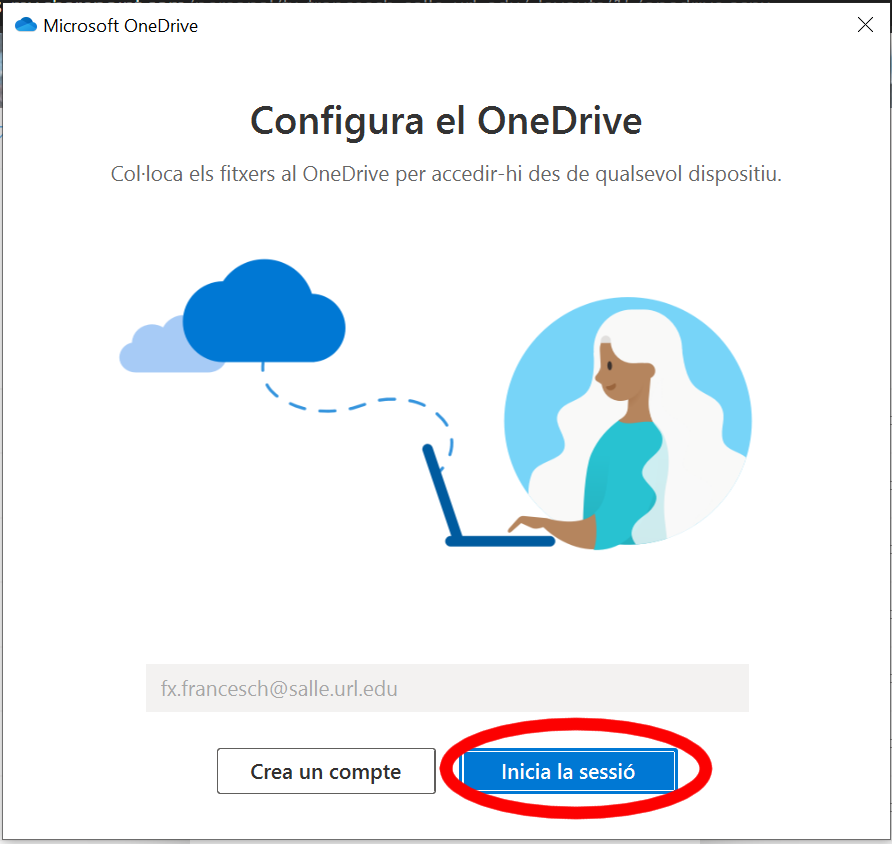
- En cas de no haver configurat anteriorment l'apliació OneDrive local, aquesta ens demanarà que ens identifiquem. Ens demanarà el nostre usuari. Novament introduirem el nostre usuari de correu i farem clic sobre el botó Següent (Next). En cas que l'equip estigui en domini actiu de windows (Windows AD), agafarà automàticament l'usuari amb que ens validem a l'entrar a Windows (normalment això passa si ets un PDI / PAS que utilitza un equip de la Universitat) i simplement haurem de seleccionar Inicia sessió (Sign In).
-
A continuació se'ns tornarà a demanar la contrasenya. La introduirem i seleccionarem l'enllaç Inicia sessió (Sign In).

-
L'aplicació ens demanarà la ubicació on emmagatzemar els fitxers sincronitzats. Per defecte ho farà a C:\Users\<login>\OneDrive - La Salle.

-
A partir d'aquest moment es començaran a sincronitzar els documents a la carpeta destinació. Per poder modificar les carpetes que volem sincronitzar podem fer-ho accedint a menú de configuració. Per fer-ho hem de fer clic amb el botó dret sobre l'enllaç a OneDrive que es troba a la barra d'eines inferior.

-
S'obrirà un menú desplegable i haurem de seleccionar Configuració.
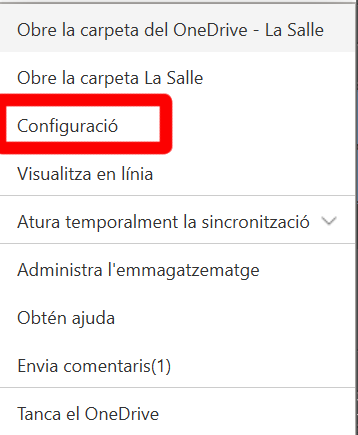
- Al seleccionar-ho podrem veure una finestra on gestionar les opcions de OneDrive.
