Home
> FAQs
> Xarxa i Wifi
> Error de connexió: No es pot connectar al servei de GlobalProtect
Error de connexió: No es pot connectar al servei de GlobalProtect
Problema:
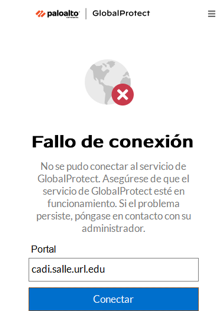
El client de la VPN GlobalProtect pot mostrar un error sovint quan s'actualitza, es reinicia l'ordinador o en altres casos on apareix el següent missatge d'error:
"Fallo de connexión: No se pudo conectar al servicio de Globalprotect. Asegúrase de que el servicio de GlobalProtect esté en funcionamiento. Si el problema persiste, póngase en contacto con su administrador. "
Solució:
Si tens un ordinador corporatiu, necessitaràs permís d'administrador per continuar. Posa't en contacte amb HelpDesk per sol·licitar una sessió remota o presencial.
Si tens permís d'administrador:
Windows
1. Obra l'administrador de tasques. Busca al cercador de Windows "taskmgr" i executa'l. També el pots iniciar amb la combinació de tecles CTR+SHIFT+ESC

2. Ves a la pestanya Serveis i búsca el servei PanGPS.
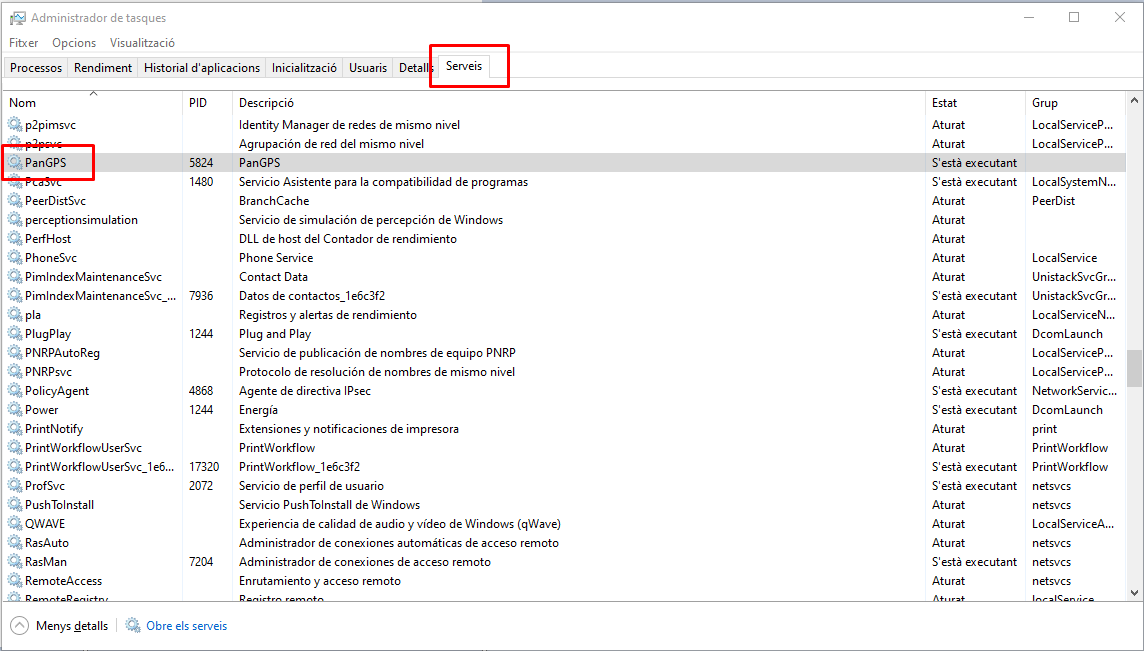
3. Fes clic amb el botó dret i selecciona Reiniciar. Si es demana, accepta l'elevació de permisos d'administrador.
En uns segons el servei s'iniciarà i en tornar a connectar la VPN del GlobalProtect hauria de funcionar. En cas que no es solucioni i surti el mateix error, reinicia un cop l'ordinador per aplicar els canvis. Si, així i tot, no funciona, posa't en contacta amb HelpDesk.
macOS:
Necessites permís d'administrador i/o sudo. També poder accedir a un terminal. En alguns equips amb xip M1 o M2 s'han detectat incompatibilitats causades pel sistema operatiu de macOS.
1. Obra un terminal per aturar els serves de GlobalProtect executant les següents comandes:
launchctl unload /Library/LaunchAgents/com.paloaltonetworks.gp.pangps.plist
launchctl unload /Library/LaunchAgents/com.paloaltonetworks.gp.pangpa.plist
2. Executa les següents comandes per habilitar els serveis de GlobalProtect:
launchctl load -w /Library/LaunchAgents/com.paloaltonetworks.gp.pangps.plist

launchctl load -w /Library/LaunchAgents/com.paloaltonetworks.gp.pangpa.plist
Assegura't que el resultat de les comandes són missatges indicant que s'han executat correctament. Si no hi ha cap missatge de resposta, el resultat també és correcte.
3. Torna a intentar a connectar la VPN. Si encara surt el mateix error, prova de reiniciar un sol cop l'ordinador per aplicar els canvis. Si, així i tot, no funciona, posa't en contacta amb HelpDesk.